
This is
LEVELHEAD.
Bring your audio into balance.
What does it do?
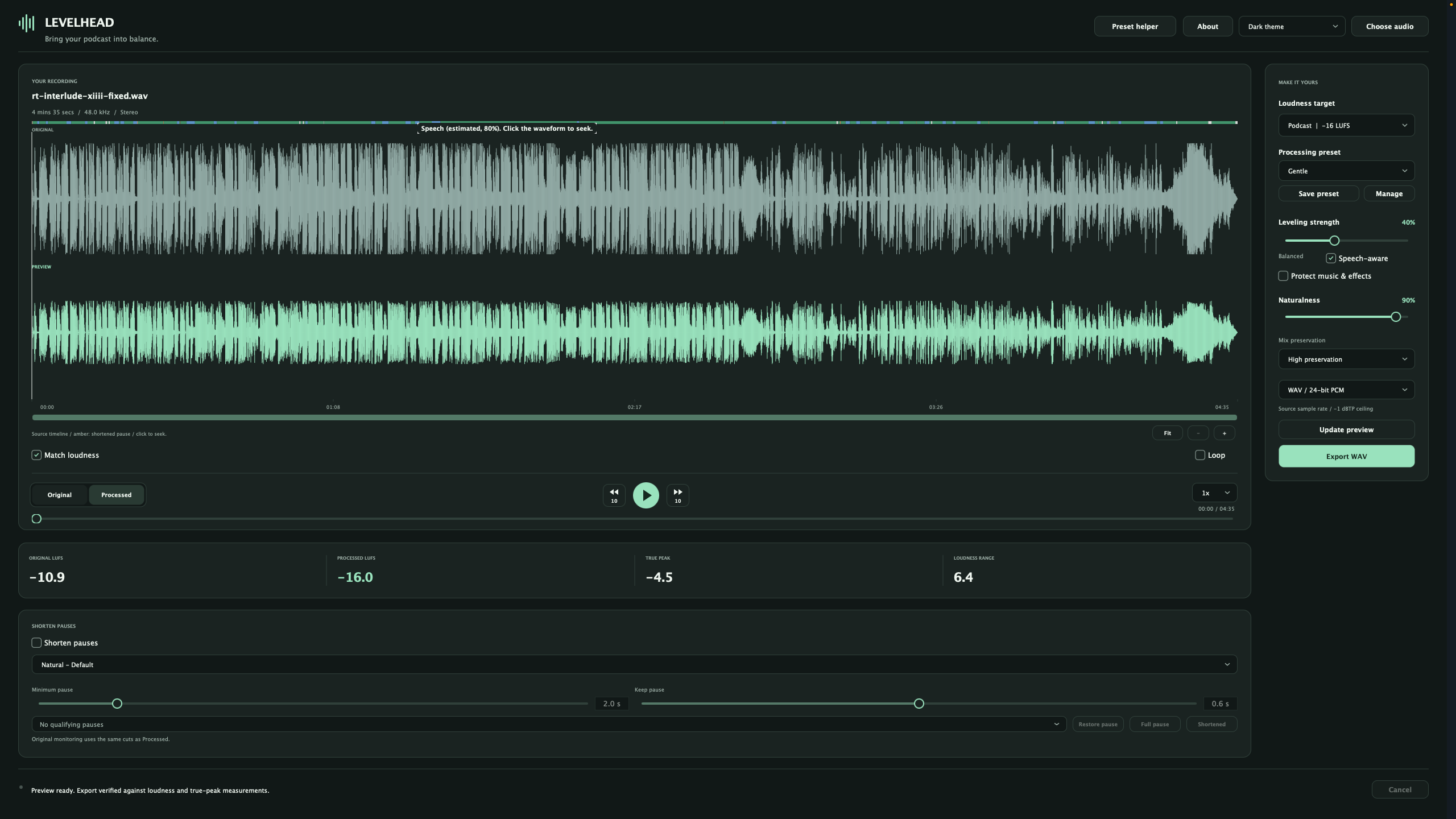
Let's say you're producing a podcast or an audiobook. Sometimes you get audio from different sources. Some are loud, some are quiet. LEVELHEAD puts it all within a listenable range, respecting your settings.
You can throw your fully produced file at it. LEVELHEAD detects music / speech / pauses and tries to respect those.
It's not only a compressor as it's respecting the context of a typical podcast / audiobook production with it's several contents (jingles, sound effects etc.).
WHAT DO YOU MEAN WITH CONTEXT SENSITIVE?
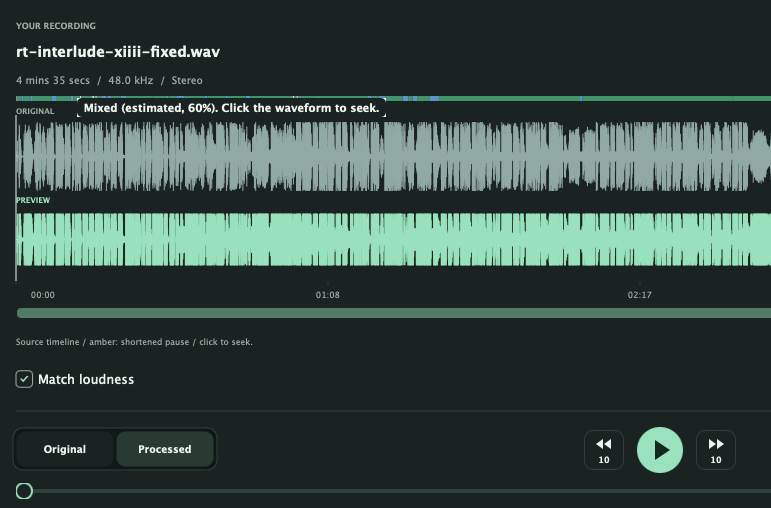
LEVELHEAD tries to recognize music and sound effects to respect it while optimizing your audio file. Sometimes you just want to optimize speech but don't want to destroy the balance between jingles / SFX and voice? Yup, LEVELHEAD might help you there!
Can I turn it to the MAX?
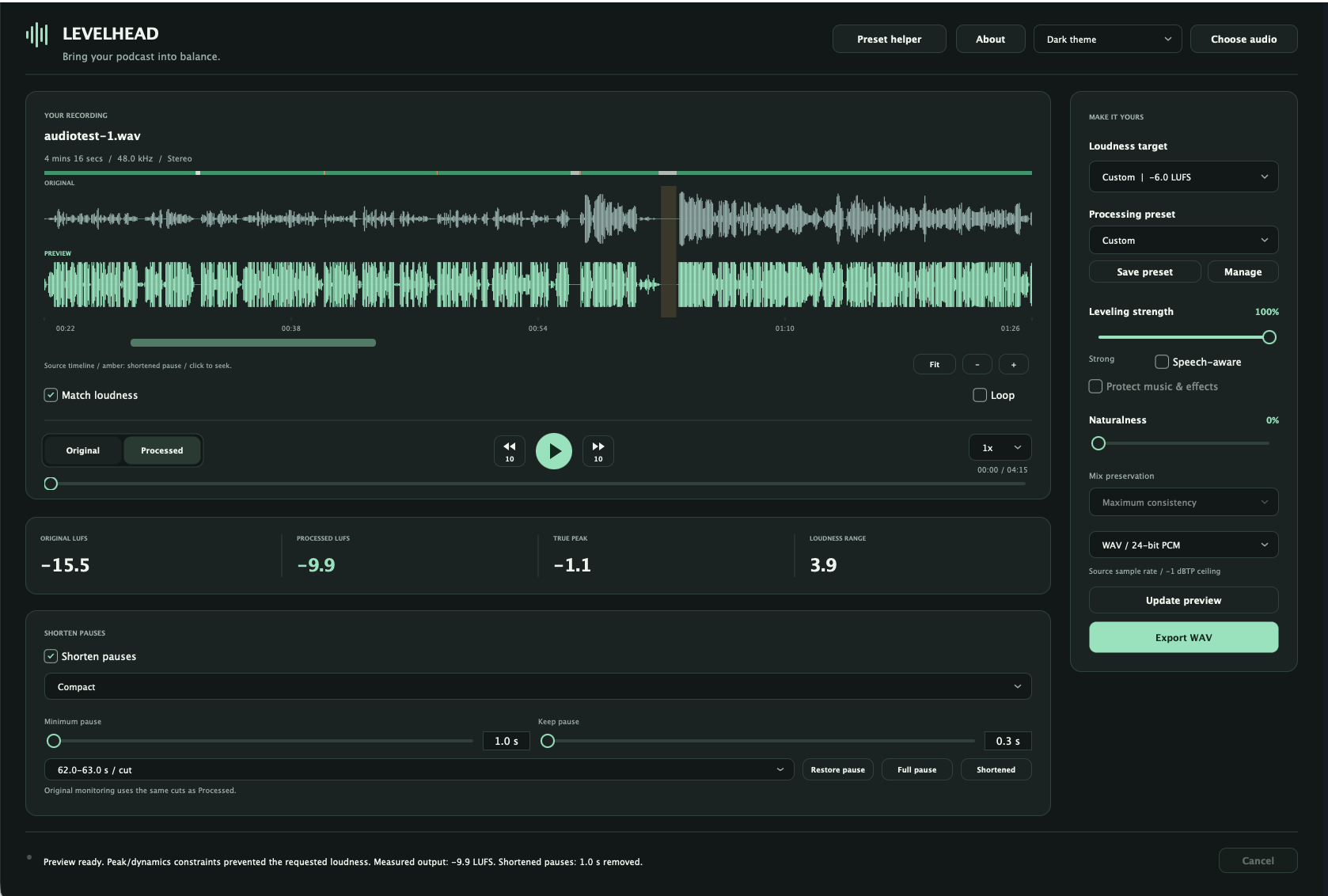
Sure you can! You can level every voice to the extreme! Just put your raw recording into the app and wonder!
If you want, you can shorten silence too, without destroying the dynamic of a typical conversation.
Several presets might help you there but you're always in full control.
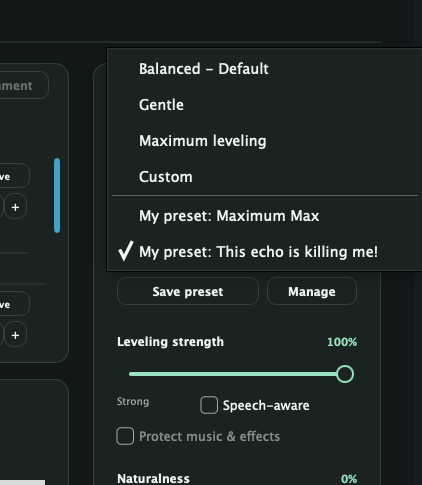
We know everyone has his own audio setup with different circumstances. So yes. You can save your own and load your own presets, too.
Demo

Unoptimized

Optimized
WHAT ABOUT MULTRITRACK RECORDINGS?
I hear you. Maybe you have a bunch of tracks from recording podcast members and just want to throw them into the app to get a balanced output? Maybe with shortening pauses? In my case, I use ZENCASTR and I get multiple recordings from every session. Balancing them manually is never perfect and takes a lot of time.
I got you covered. Save money and time and just throw your tracks into LEVELHEAD and let it do it's thing.
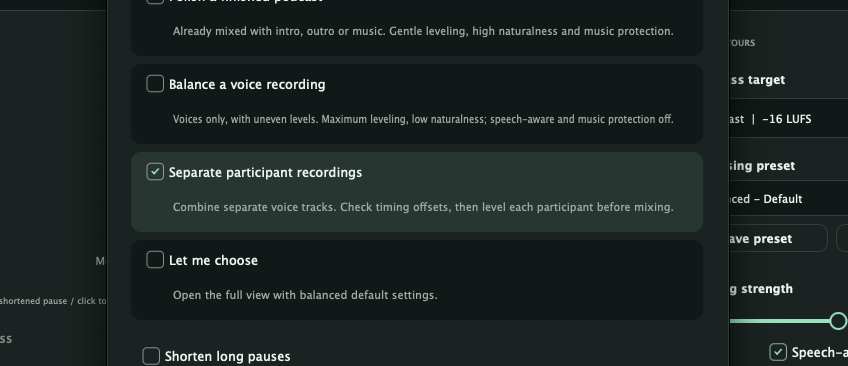
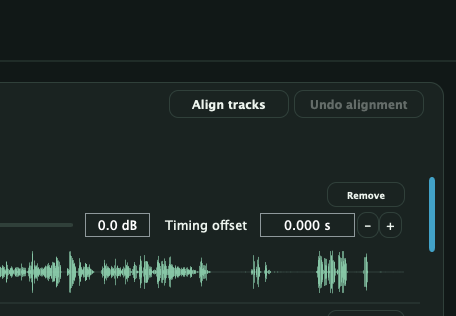
If something seems off, let the tool sync your voice recordings. "Align tracks" will try to look for small audio similarities, so it will put tracks in sync together.
Multitrack-optimizing here might work, but it'll never replace a good recording. So yeah, listen to the preview and love / hate what you get. This ain't a DAW, this is just a tool you should throw things at, that are already somewhat done.
Whenever you import multiple tracks, a multi-track view will appear. It follows the same rules as a single track. It works, but it's not recommended, as no software (excluding AI) knows how your setup works and how much it can fix stuff like microphone bleeding, echoing etc.
So please - don't blame me. You can do all you want with this tool and maybe you'll find a preset that fits your needs.
I've found one for my needs btw. and it saves me A LOT OF time. My people and their recordings are manageable after all. There's no secret and no perfect preset. If you choose to throw all your tracks into this software, you'll have to work - once. If you find your perfect settings, save it as a preset and never think about it again.
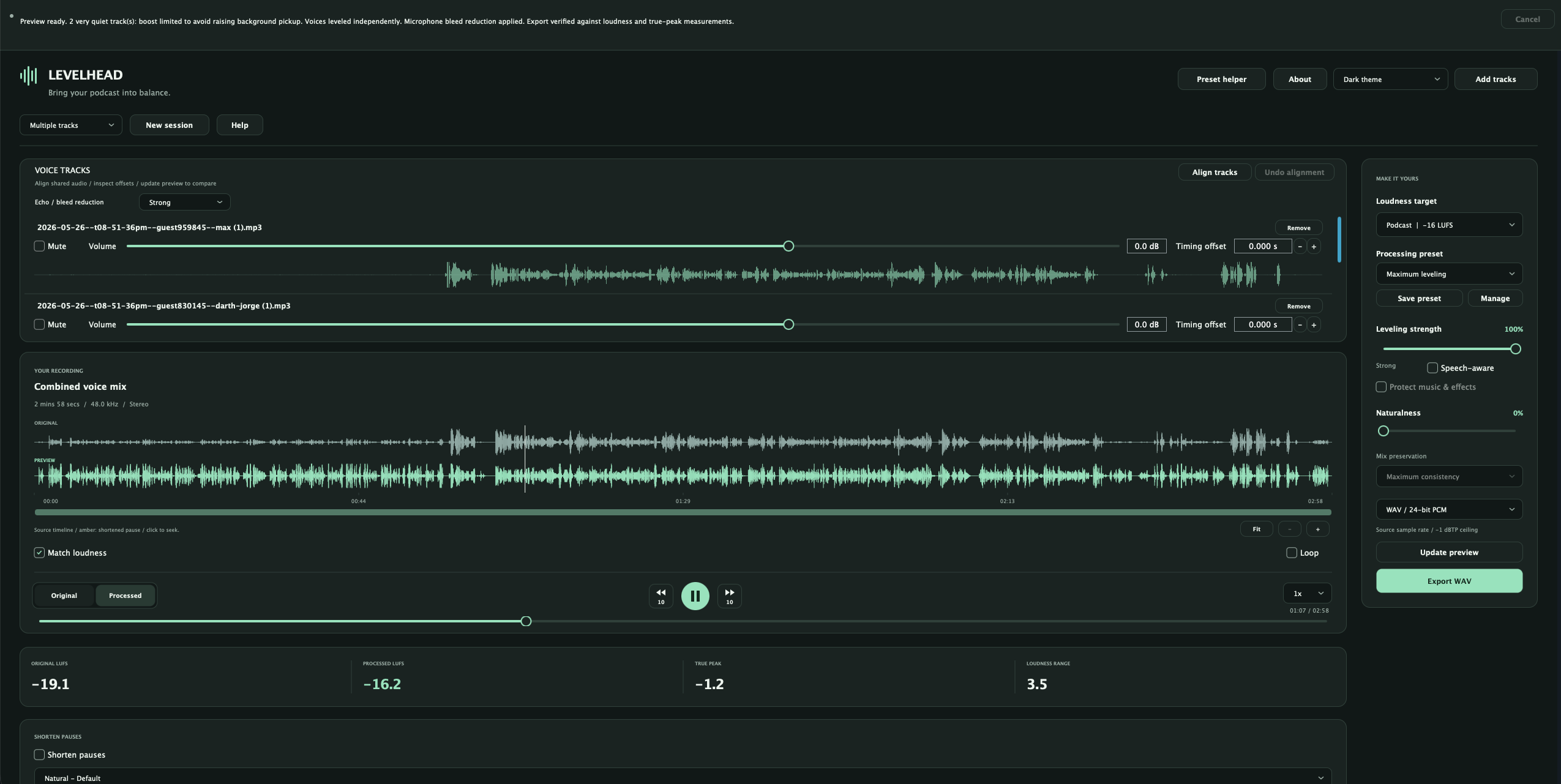
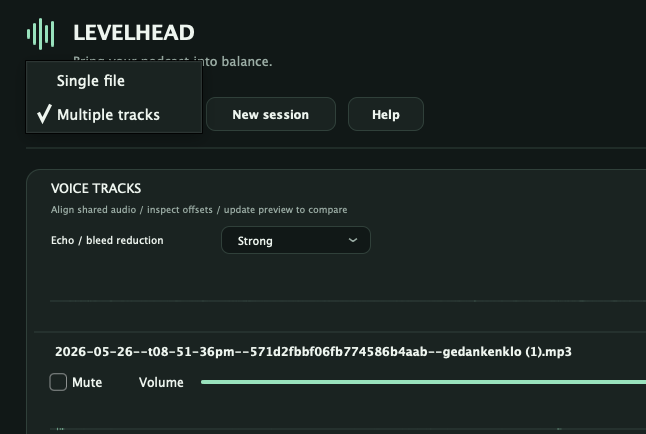
It does have Echo-Cancelling, but of course, this only can work to some extent, though. It works best, if you keep your voice recordings somewhat clean.
LEVELHEAD — Bring your podcast into balance
LEVELHEAD is a desktop app for podcast leveling and mastering. It helps turn uneven recordings into a consistent listening experience, whether you begin with a finished podcast mix, a recording containing several voices, or separate tracks for each participant.
Balance speech levels, preserve the character of your recording, shorten long pauses, compare the result, and export a mastered WAV or MP3. Everything runs locally on your Mac.
Work with finished mixes or separate recordings
LEVELHEAD offers two workspaces that share the same preview, mastering and export tools.
Single file is designed for a finished podcast mix or one recording containing multiple speakers. Import a mono or stereo WAV or MP3 through the file picker or drag and drop.
Multiple tracks lets you combine up to 32 separate participant recordings. Drop several files into LEVELHEAD to enter the multi-track workflow, or choose it from the session selector or Preset helper. Each track has its own waveform overview, volume control, mute button and timing offset. You can add more recordings or remove individual tracks as you work.
In multi-track mode, LEVELHEAD levels the active voices independently before combining them into one stereo mix. Shared mastering and pause shortening then apply to the combined recording. Multi-track output uses stereo at 48 kHz; single-file WAV output retains the source sample rate and channel configuration.
Balance speech levels
LEVELHEAD reduces distracting differences between loud and quiet passages. Its Leveling strength control determines how strongly it adjusts those differences.
The Naturalness control helps you choose how much expressive variation to retain. Higher settings use gentler changes and preserve more of the original dynamics. Lower settings allow stronger leveling and compression for a more consistent result.
Optional Speech-aware processing uses content estimates to prioritize speech. Protect music & effects helps preserve material such as intros, outros, music and sound effects. The Mix preservation control offers High preservation, Balanced preservation and Maximum consistency settings.
Content detection is an estimate, so the preview remains an essential part of the workflow—especially for recordings that combine speech, music and other sounds.
Choose a starting point with the Preset helper
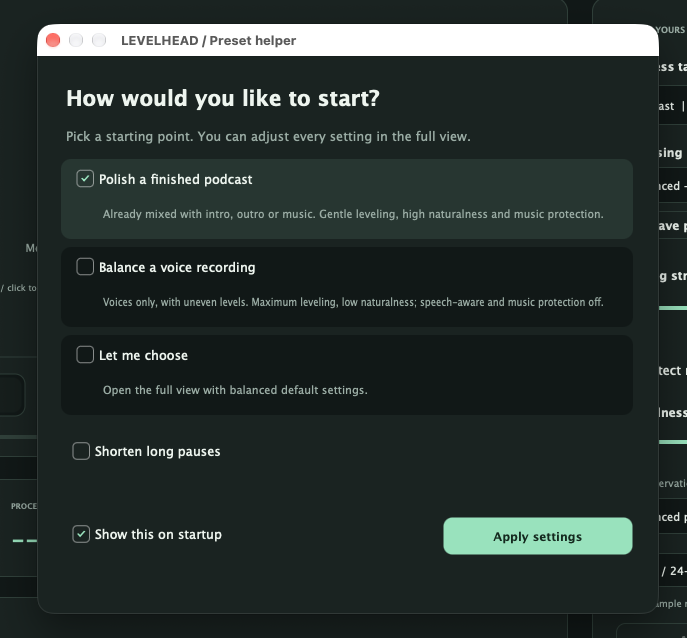
The Preset helper offers four ways to begin:
-
Polish a finished podcast: Gentle processing for a recording already mixed with an intro, outro or music.
-
Balance a voice recording: Strong leveling for voices with uneven levels.
-
Separate participant recordings: A starting point for combining individual voice tracks.
-
Let me choose: Open the full interface with balanced defaults and adjust the settings yourself.
The helper also offers an option to shorten long pauses. You can choose whether it appears on startup and reopen it from the main interface whenever you need it.
Built-in processing presets include Balanced, Gentle and Maximum leveling. Adjusting their controls lets you create a custom setting.
Save your own presets
Save preferred settings for recurring shows, recording setups or delivery requirements. User presets retain leveling, naturalness, speech and music protection, mix preservation, bleed reduction, pause settings, loudness target and export quality.
Saved presets can be loaded, updated, renamed or deleted. LEVELHEAD supports up to 50 user presets.
Presets store processing choices rather than episode contents: source files, track timing and volume adjustments, and individual pause-restoration decisions remain specific to the current session.
Adjust timing between participants
Each participant track has a timing offset control. Delay a recording or trim its beginning to place it correctly in the combined timeline.
The optional Align tracks action looks for shared audio and estimates consistent timing differences. It searches within two seconds of the current offsets and applies changes only when it finds reliable matching evidence. For larger differences, set approximate offsets manually first.
After alignment, update the preview and listen. Undo alignment restores the previous timing settings.
Tracks without a reliable match retain their offsets. Alignment does not correct gradual clock drift, and a failed match does not confirm that recordings are already synchronized.
Reduce duplicate microphone pickup
When a microphone captures another participant through speakers or headphones, that voice can appear on more than one track and create an echo in the combined mix.
Multi-track Echo / bleed reduction offers Off, Gentle, Balanced and Strong settings. It compares the microphone recordings and lowers quieter copies of audio that appears more strongly on another track.
The detector handles short delays and can follow longer, changing pickup delays of up to approximately 700 milliseconds. When reduction is enabled, LEVELHEAD also limits excessive amplification of exceptionally quiet tracks, helping prevent background pickup from being raised toward normal speaker loudness.
This feature reduces duplicate pickup; it does not guarantee complete echo removal or remove room reverberation within a single microphone recording. Stronger settings can affect quiet or overlapping voices. Start with Gentle, update the preview, and compare before increasing the strength. Per-track mute controls also help identify which microphone is introducing unwanted pickup.
Shorten long pauses
Optional Shorten pauses reduces long, very quiet gaps in the combined recording.
Choose a pacing preset—Natural, Tighter pacing or Compact—or adjust the minimum qualifying pause and the amount of pause to keep. Minimum pause settings range from 1 to 8 seconds, while retained pauses range from 0.3 to 0.9 seconds.
Amber markers show shortened regions in the waveform. A pause list lets you select individual cuts for review:
-
Restore pause keeps a selected gap at its original length.
-
Full pause auditions the gap before shortening.
-
Shortened auditions the edited version.
LEVELHEAD uses short crossfades at cuts to smooth the transitions. In multi-track mode, pause shortening applies to the combined timeline, preserving synchronization between participants.
Preview before exporting
LEVELHEAD creates a temporary processed preview so you can review the complete result before saving your final file.
Choose Analyze & Preview to prepare the recording. After changing settings, timing, track levels or pause decisions, choose Update preview to hear the new result. Export becomes available once the current preview is ready and verified.
The Original / Processed comparison lets you switch between the unprocessed recording and the mastered result. In multi-track mode, Original is the combined source tracks with your timing, volume and mute choices applied.
Both comparison versions use the same pause cuts, making it easier to compare sound processing without losing your place.
Optional Match loudness adjusts monitoring levels for a fairer comparison. It affects listening only; it does not change the exported file.
Navigate and audition comfortably
The preview includes a dedicated playback interface with:
-
Play and pause controls.
-
Ten-second backward and forward jumps.
-
A playback-position slider and elapsed-time display.
-
Loop playback.
-
Playback speeds of 0.75×, 1×, 1.25×, 1.5× and 2×.
-
Pitch-preserved speed changes, keeping voices at their original pitch.
-
Waveform click-to-seek.
-
Shared waveform zoom, horizontal scrolling and a Fit control to show the full recording.
-
Timeline labels, content-estimate indicators and pause-cut markers.
Keyboard controls include Space for play/pause, Left and Right for ten-second jumps, and Shift with Left or Right for thirty-second jumps.
Playback speed changes are for monitoring. Exports retain the recording’s normal speed.
Choose your loudness target
Loudness targets are separate from processing presets, allowing you to choose both the sound and delivery level you need:
-
Podcast: −16 LUFS.
-
Louder: −14 LUFS.
-
Audiobook: −18 LUFS.
-
Broadcast: −23 LUFS.
-
Custom: A target from −60 to −6 LUFS.
LEVELHEAD measures integrated loudness and true peak, then checks the processed result against the selected target and its −1 dBTP peak ceiling. If peak or dynamics constraints prevent the requested loudness, it reports the measured outcome.
The measurement panel displays Original LUFS, Processed LUFS, True Peak and Loudness Range.
Export WAV or MP3
Export the verified preview in the format that suits your workflow.
WAV export offers 16-bit or 24-bit PCM. Single-file WAV exports retain the source sample rate and mono or stereo configuration. Multi-track WAV exports use stereo at 48 kHz.
MP3 export offers constant bitrates of 128, 192, 256 or 320 kbps. LEVELHEAD measures the encoded MP3 after decoding it again, checking loudness and true peak because lossy encoding can change peak levels.
Exports use normal playback speed. Source recordings remain unchanged, and existing destination files are not silently overwritten.
Keep track of processing
Progress, system messages and the Cancel control stay visible at the top of the window while you scroll through the workspace.
LEVELHEAD reports when a preview is ready, when settings need a new preview, when alignment cannot find a reliable match, and when processing or export encounters a problem. Background processing can be cancelled.
The New session button gives you a clear way to start again. It asks before clearing loaded recordings, previews, timing changes and episode-specific pause decisions, while keeping current processing settings and saved presets.
An interface that suits your workspace
Choose Light, Dark or System appearance. LEVELHEAD remembers your theme preference, and native macOS window appearance follows the selected theme.
The window can be resized or used in full screen. Scrollable content keeps the controls accessible at smaller window sizes.
Built-in Help covers common scenarios: polishing finished mixes, balancing voices, combining participants, checking timing, troubleshooting echo, shortening pauses, reviewing previews and exporting.
The About screen includes application information, credits and dependency information.
Local processing on your Mac
LEVELHEAD currently runs on Apple Silicon Macs with macOS 12 or later. Audio analysis, leveling, preview generation, alignment, bleed reduction and export all run locally. No audio upload or cloud processing is required.
Developed by weltenfunk. Programmed by Benjamin Luikenga.
What does it cost YOU?
Nothing.
I'm working on this as part of my "podcasting" hobby for a bunch of years. If it helps you, please consider a donation via PayPal to benjamin.luikenga@googlemail.com
How do I download it?
Get the current release here. These are LIVE-Updates, not signed by anyone. Maybe, your current macOS installation may scold.
current version: 0.7.4
(macOS only)
How to Open LEVELHEAD on macOS
Since LEVELHEAD is currently not notarized by Apple, macOS may prevent it from opening the first time. Don't worry — this is a standard security measure for apps distributed outside the Mac App Store.
To open LEVELHEAD:
- Download LEVELHEAD and move the app to your Applications folder.
- Double-click the app to launch it.
- If macOS displays a security warning, click Done.
- Open System Settings → Privacy & Security.
- Scroll down to the Security section.
- Find the message stating that LEVELHEAD was blocked and click Open Anyway.
- Confirm your choice using your Mac password or Touch ID if prompted.
That's it! LEVELHEAD should now launch normally. You usually only need to do this once.
Note: We're working on Apple notarization to make the installation process even smoother in future releases.